In my previous blog, we learned about the structure of database and environments comparing GP to BC. This time we will explore more about Environments.
In Dynamics GP, we create our environments (SQL Instance) upon installing our SQL Server and we define its name during the installation process. We consider the SQL instance name as a permanent name because renaming it is a sin!:) We install Dynamics GP on each workstations or Application Servers and we use the SQL Server name or IP address to create our ODBC for Dynamics GP to connect to the server.
In Business Central, your Environment is ready available for you upon license purchase no need to install anything. There are two types of licenses: Premium and Essentials. If you need Service Management and Manufacturing, you will need the Premium license. We will discuss this in details in my separate blog.
Number of environments
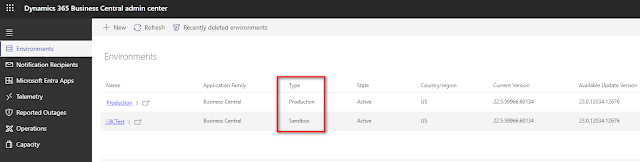
To access your Environments, you must have a SUPER user rights, click on Settings >> Environments. Microsoft will give you one Production and three Sandbox free of charge.
If you require more production environments, you can buy additional environments through your Microsoft partner or Microsoft (Cloud Solution Provider) CSP partner.
Storage Capacity
In Dynamics GP, you manage and plan your database capacity by adding disk space in SQL Server based on data storage you need. You monitor along the way if more space is needed.
The same way in Business Central, you manage and plan your storage costs on an ongoing basis. The Capacity page provides an overview of the total database storage usage, with details about the storage used by every environment. The page also displays the currently used and the maximum allowed number of production and sandbox environments available.
By default you will get 80GB storage included with the purchase of BC at no additional cost. If you need more storage than the 80GB, additional capacity can be purchased through your reselling partner.
Actual customer environments
In my screenshots below, I have a Storage capacity by source: original default of 80GB plus 22 GB that comes with 6 Essential User license. The total storage capacity is 102 GB for both production and sandbox environments and all storage capacity and usage information is available under Settings >> Capacity for easy monitoring.
Under Environment quota usage, I have one production and one sandbox (1 of 3 used).
(Please click on the photos for better viewing)
Create Environment
To create New Environment, please click on Settings >> Admin Center >> Environments >> New. Enter your environment name, Type and Country, and then click Create.
Note: The newly created environment will be based on the most recent version.
In my screenshot below, you'll see my newly added Sandbox.
Now, I used 2 out of 3 Sandbox.
Q: How many production and sandbox you will get upon license purchase?
A: 1 production and 3 sandbox
Q: How much storage capacity by original default you will receive for free?
A: 80 GB
Q: How much storage space is used when creating a new empty Sandbox?
A: 0.05 GB
In Business Central >> Settings >> Environments you can copy, restore, rename, delete and refresh your environments.
Q: How often are production databases backed up?
A: Databases are protected by automatic backups that are kept for 28 days. The backup includes data from any production and sandbox environments that the database contains. Administrators of a Business Central tenant can't directly access or manage these backups because they're managed automatically by Microsoft. But admins can restore their environments to a specific point in time in the past using the Business Central admin center.
You can get notified of administrative events that occur on environments in a Business Central online tenant. For example, notifications when a major update is available for environments, when an environment update has succeeded or failed, or when extensions require changes to be compatible with an upcoming update. When these and other similar events occur on the tenant, an email is sent to the notification recipients for the tenant.
Q: How often is Business Central updated?
A: Business Central online is governed by Microsoft's Modern Lifecycle Policy. This means continuous service updates and a major update every six months.
Summary
As a Sr. Dynamics GP Admin, I find Business Central more manageable and easier to handle. Everything that I need to do is in Admin Center.
- I can see my storage capacity in a glance.
- I can copy Production environment over to Sandbox in a few clicks, no more extra manual work of copying company database of production over to UAT.
- I can create versions of sandbox so easily whenever I need to test extensions or 3rd party products. I can delete and create a new one anytime.
- I can be notified whenever there's a new system update and I can schedule when to run the update.
- Microsoft is doing the backup for me!
See you on my next blog!


Comments
Post a Comment