We are now on Day 3 with our GP to BC adventure series! If you follow along this blog with my two previous blogs, I am confident that you should be able to create your own environments and companies in Business Central online.
Dynamics GP Create a Company
To create a company in Dynamics GP, we start by launching Dynamics GP Utilities and login as "sa" system admin. We click next to follow the wizard as shown in my screenshots below. In Additional Tasks, we select "Create Company" and then click on "Process". We can only use maximum of 5 characters for company ID and 64 characters for company name. I usually leave the shipping methods, payment terms and load chart of accounts checkboxes unmarked. Copy Access from another company is a time saver. And then we enter the location where the data and log devices should be created. A confirmation window will appear and click Finish.
Dynamics GP Sample Company
To add a sample company TWO Fabrikam, Inc., we launch again the Dynamics GP Utilities and login as "sa" system admin. In Additional Tasks, we select "Add sample company data" and then "Process".
To refresh the Fabrikam, Inc., we select Re-add sample company data using the same process. It will simply overwrite the existing TWO company database. The GP version will stay the same.
After installing Dynamics GP, we login by going to Start > Programs > Microsoft Dynamics > GP The Welcome to Dynamics GP window opens.
In Business Central, the sample company is called Cronus USA, Inc. I would say the Fabrikam, Inc., in Dynamics GP has more sample transactions than Cronus USA but no worries we can create more sample transactions later.
To create a new company in BC, please press ALT+Q on your keyboard and then type in companies to search. Click on New >> Create New Company.
You will be prompted to follow the wizard, click Next.
The company ID in GP is called company name in BC, while company name in GP is called display name in BC. Here is the chart of their maximum characters:
It depends on how you want to create your new company as you will be prompted with 4 options. Select Create New - No Data to do your own setup later.
Selections:
Evaluation - Sample Data
Essential Experience / Cronus Company Sample Data / Setup Data
Create a company with the Essential functionality scope containing everything you need to evaluate the product for companies with standard processes. For example, sample invoices and ledger entries allow you to view charts and reports.
Production - Setup Data Only
Essential Experience / Setup Data Only
Create a company with the Essential functionality scope containing data and setup, such as a chart of accounts and payment methods ready for use by companies with standard processes. Set up your own items and customers, and start posting right away.
Advanced Experience / Cronus Company Sample Data / Setup Data
Create a company with the Advanced functionality scope containing everything you need to evaluate the product for companies with advanced processes. For example, sample items and customers allow you to start posting right away.
Create New - No Data
Any Experience / No Sample Data / No Setup Data
Create a company with the desired experience for companies with any process complexity, and set it up manually.
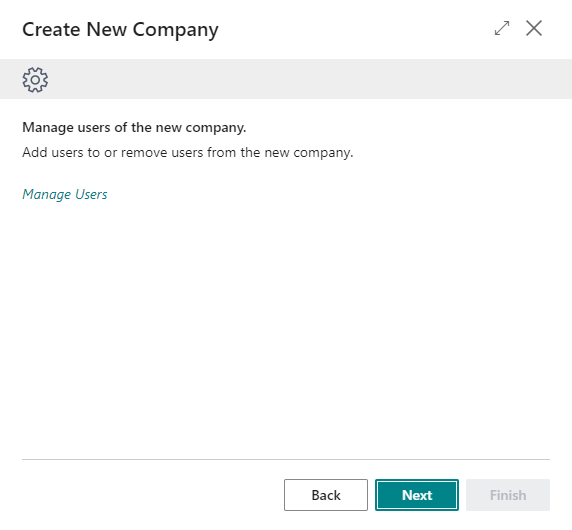
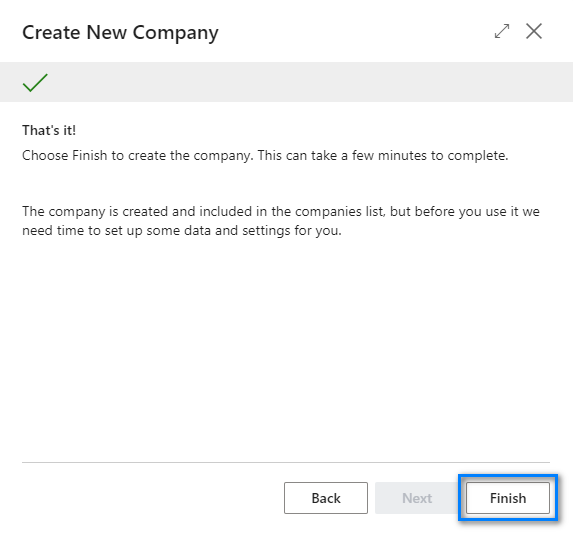
In this exercise, I created option 3: Advanced Experience and I named it CRONUS ADVANCED. Yes, you will need to wait up to 10 minutes for the process to complete.
How much space I used? To create an Advanced Cronus Sample company, it will only take .04 GB space. It was from .11 to .15 - the before screenshot is in my previous blog. :)
To rename your company, please click on Edit List.
Copy Company
In Dynamics GP, we use MSSQL Management Studio, there must be an existing database where we can copy or restore a database into.
In Business Central, you can only copy a company over to a new company name. To copy, please make sure you are login to the correct environment. Highlight the company you want to copy, click on Copy >>enter company name, click on I understand button, and then OK.
Note: Please remember this Copy feature is just to copy a company. To restore companies, please use the Environments based on your desired backup date. We discussed this in detailed in my previous blog.
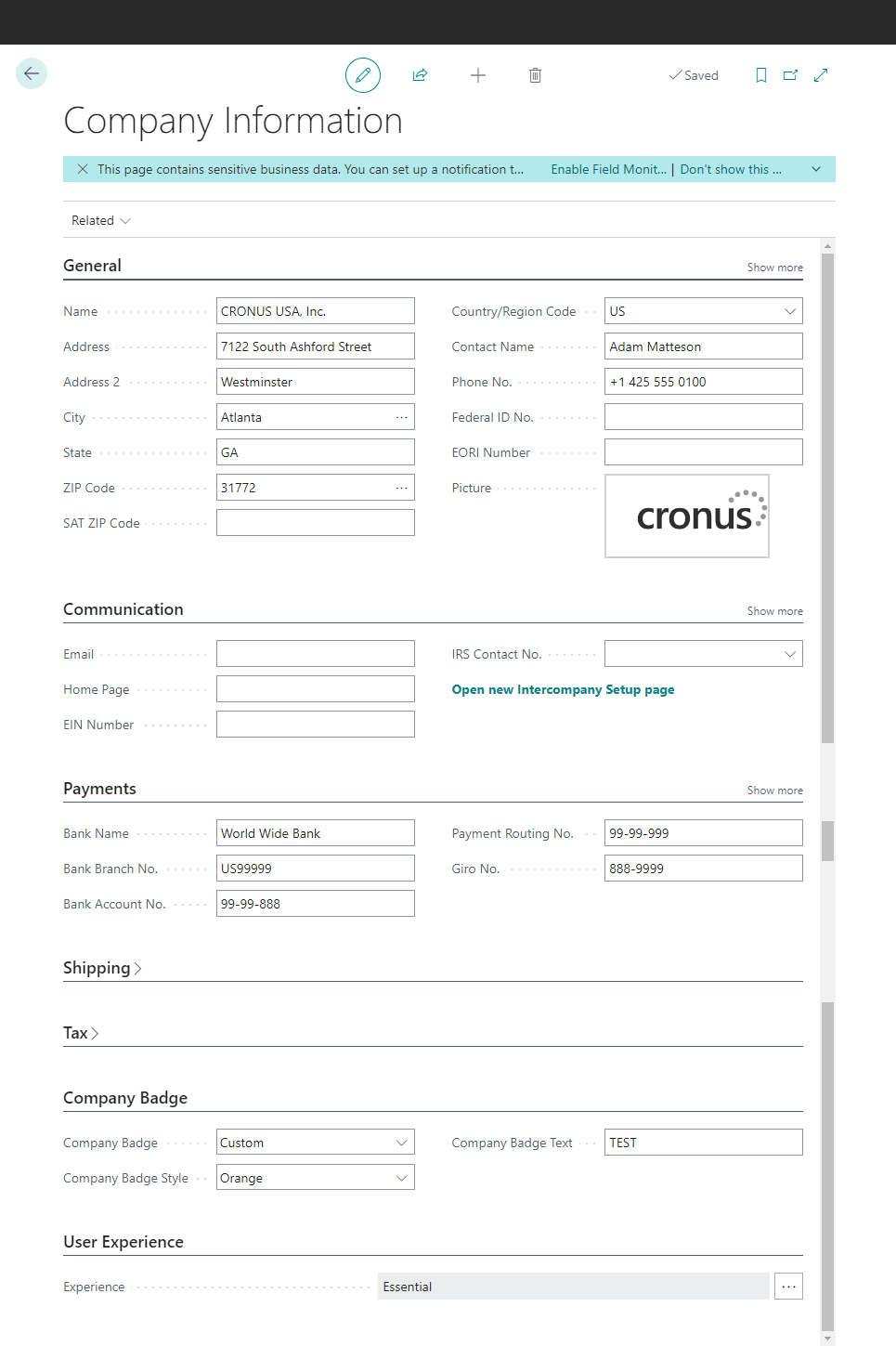
Company Information GP vs. BC
Dynamics GP >> Tools >> Setup >> Company >> Company
Business Central >> Settings >> Company Information
Switching Companies
Dynamics GP
To switch to a different company while you are working in Dynamics GP, choose Dynamics GP menu >> User and Company or company on the lower left next to user date, select company from the drop down list and then click OK.
Business Central
In BC, please click on Environment >> select company from the list and then click on Switch. You have an option to use the search button and type in few letters of the company if you have a long list of companies for easy switch. This look up is not available in Dynamics GP.




Comments
Post a Comment